> ## Documentation Index
> Fetch the complete documentation index at: https://docs.runcomfy.com/llms.txt
> Use this file to discover all available pages before exploring further.
# Edit a Deployment
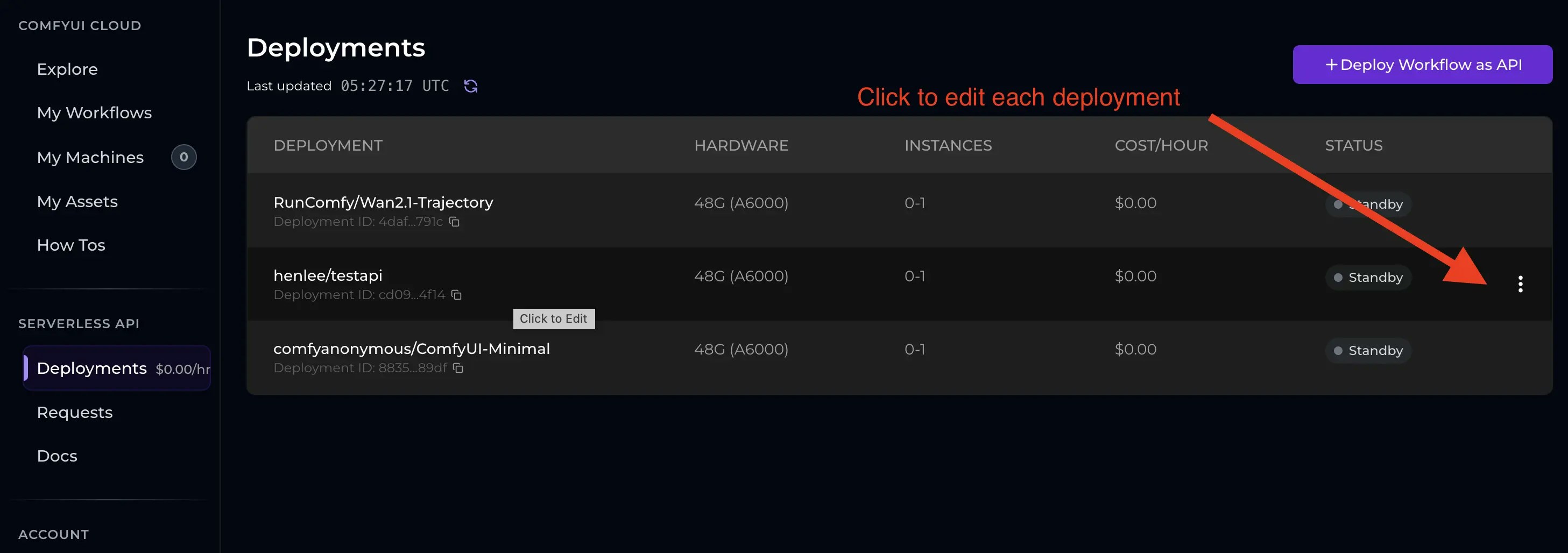
From the [Deployments](https://www.runcomfy.com/comfyui-api/deployments) page, you can update an existing deployment to match changing requirements—upgrade to a new workflow version, adjust autoscaling, switch hardware tiers, temporarily disable it for maintenance, or delete it permanently.
**Tip:** If you prefer automation (no UI), you can manage deployments via API. See **[Deployment Endpoints](/serverless/deployment-endpoints)**.
***
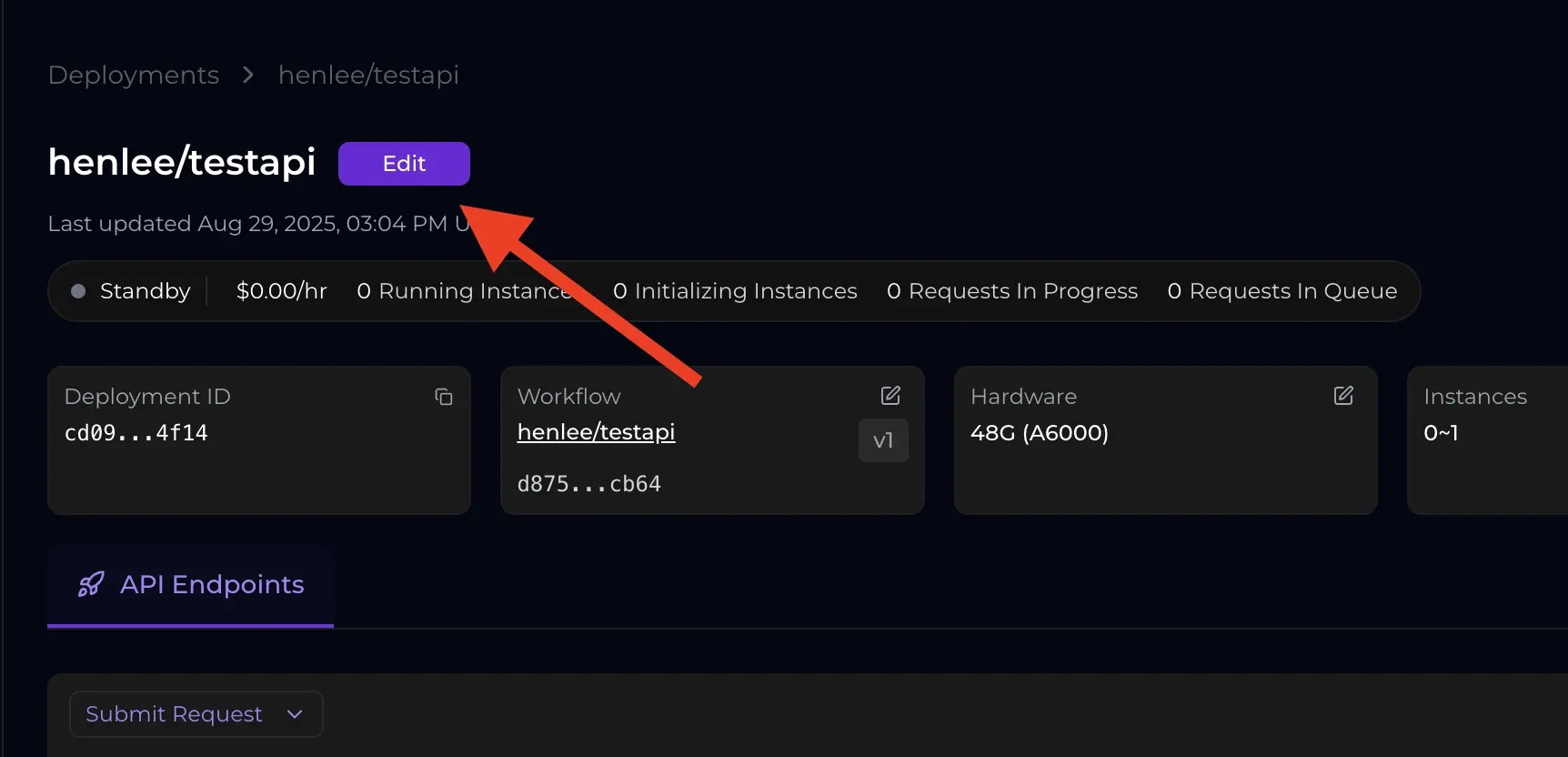
## Find the Edit Deployment button
### Step 1
 ### Step 2
 ***
## Update workflow version
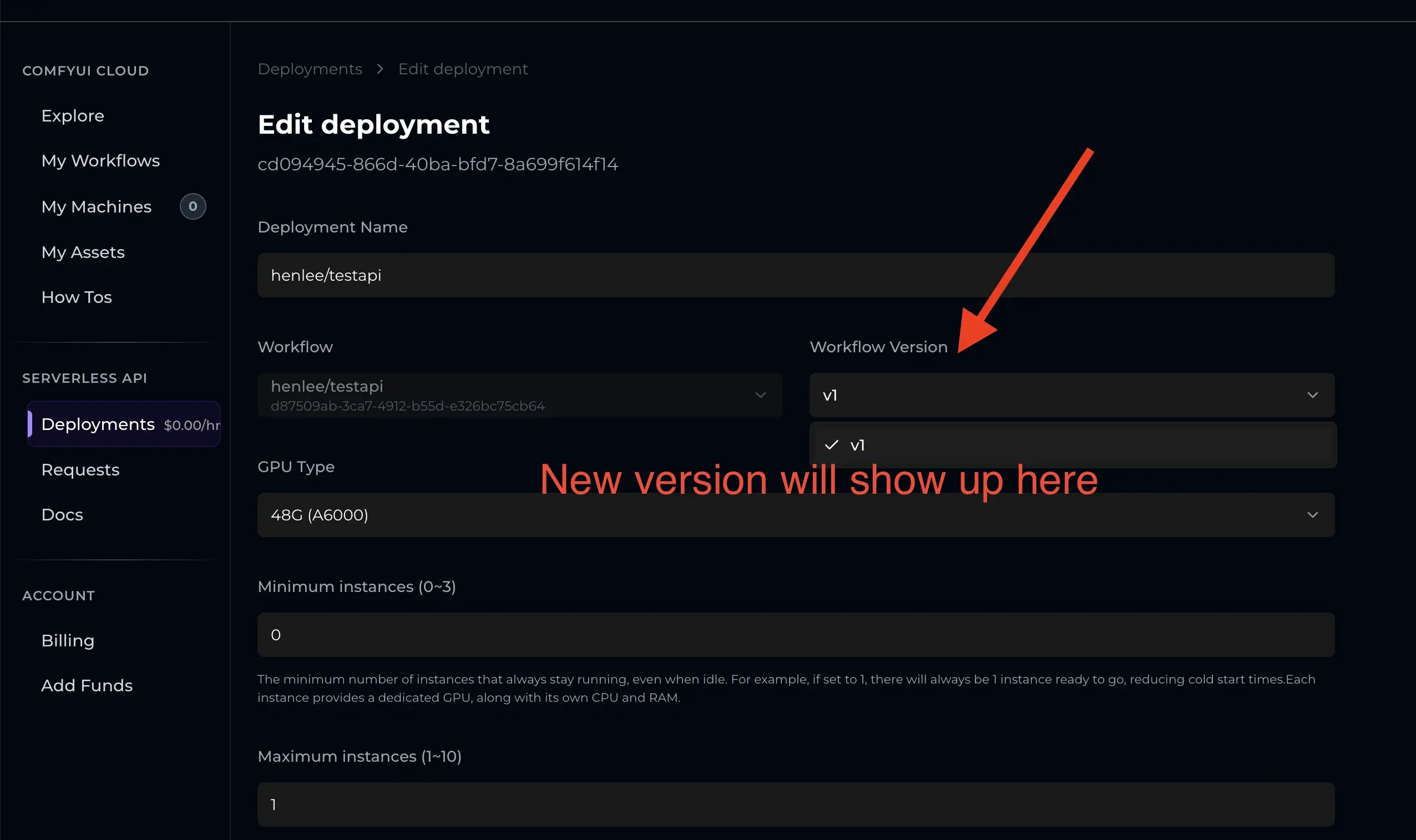
If you Cloud Saved a new workflow version (for example, you fixed bugs, optimized nodes, or added features), your deployment will **continue running the version it was created with**.
To use the new version:
1. test the new version in a ComfyUI session to confirm it runs end-to-end
2. edit the deployment and select the new workflow version
3. (important) re-check your API `overrides` — node IDs or input names may have changed between versions
### Select a version in the dropdown
***
## Update workflow version
If you Cloud Saved a new workflow version (for example, you fixed bugs, optimized nodes, or added features), your deployment will **continue running the version it was created with**.
To use the new version:
1. test the new version in a ComfyUI session to confirm it runs end-to-end
2. edit the deployment and select the new workflow version
3. (important) re-check your API `overrides` — node IDs or input names may have changed between versions
### Select a version in the dropdown
 ***
## Change hardware
You can adjust the GPU hardware tier at any time, for example, upgrade to higher VRAM for larger models or higher throughput.
***
## Change autoscaling
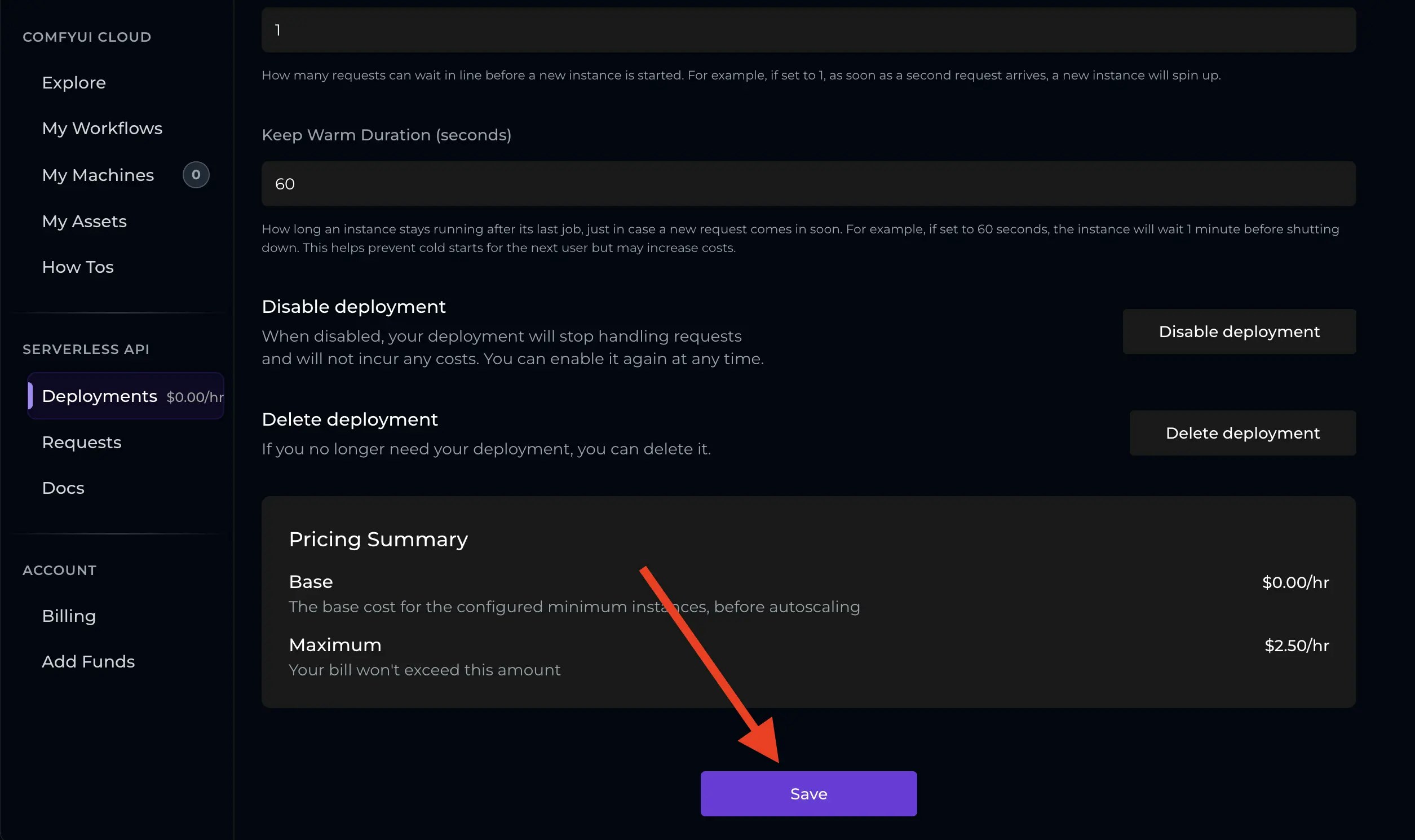
You can update autoscaling rules at any time, including:
* min/max instances
* queue size
* keep-warm duration
Tune these settings to balance latency (warm capacity, higher max) vs. cost (scale-to-zero, shorter keep-warm).
***
## Rollout behavior (what happens after you save)
Deployment changes roll out via a rolling update:
* For **workflow version** or **hardware** updates: existing instances finish in-flight requests on the old config while new instances start with the updated config; once ready, new requests are routed to the new instances.
* For **autoscaling-only** changes: the system adjusts the current instance pool according to the new rules.
This avoids downtime for most production use cases.
***
## Disable / enable a deployment
* **Disable**: new and in-flight requests are rejected and instances are shut down (stops billing). The configuration is preserved so you can re-enable later.
* **Enable**: the deployment restarts and begins accepting requests again, scaling according to your autoscaling rules.
***
## Delete a deployment
If a deployment is no longer needed, you can delete it permanently. This removes the deployment configuration and stops any associated costs, but your underlying workflow remains available for future deployments.
Before deleting, note down any settings you want to keep for reference—the action is irreversible.
***
## Save changes
***
## Change hardware
You can adjust the GPU hardware tier at any time, for example, upgrade to higher VRAM for larger models or higher throughput.
***
## Change autoscaling
You can update autoscaling rules at any time, including:
* min/max instances
* queue size
* keep-warm duration
Tune these settings to balance latency (warm capacity, higher max) vs. cost (scale-to-zero, shorter keep-warm).
***
## Rollout behavior (what happens after you save)
Deployment changes roll out via a rolling update:
* For **workflow version** or **hardware** updates: existing instances finish in-flight requests on the old config while new instances start with the updated config; once ready, new requests are routed to the new instances.
* For **autoscaling-only** changes: the system adjusts the current instance pool according to the new rules.
This avoids downtime for most production use cases.
***
## Disable / enable a deployment
* **Disable**: new and in-flight requests are rejected and instances are shut down (stops billing). The configuration is preserved so you can re-enable later.
* **Enable**: the deployment restarts and begins accepting requests again, scaling according to your autoscaling rules.
***
## Delete a deployment
If a deployment is no longer needed, you can delete it permanently. This removes the deployment configuration and stops any associated costs, but your underlying workflow remains available for future deployments.
Before deleting, note down any settings you want to keep for reference—the action is irreversible.
***
## Save changes