
Overview
In RunComfy, workflows are node-based graphs built in a cloud-hosted ComfyUI session. When your workflow is ready, you can Cloud Save it, which packages the workflow and its full runtime (drivers, libraries, custom nodes, models, dependencies) into a reproducible container image. Once Cloud Saved, you can deploy the workflow as a serverless API endpoint (a Deployment) and call it from your application.Note: Workflows in RunComfy are kept in sync with the official ComfyUI GitHub repository (including historical versions), so you can work in an interface that matches your local setup. We also keep older ComfyUI versions available, so you can switch to an earlier version if needed.
Build a workflow
You can start from scratch or use a community workflow as a template.Option A: Start from scratch
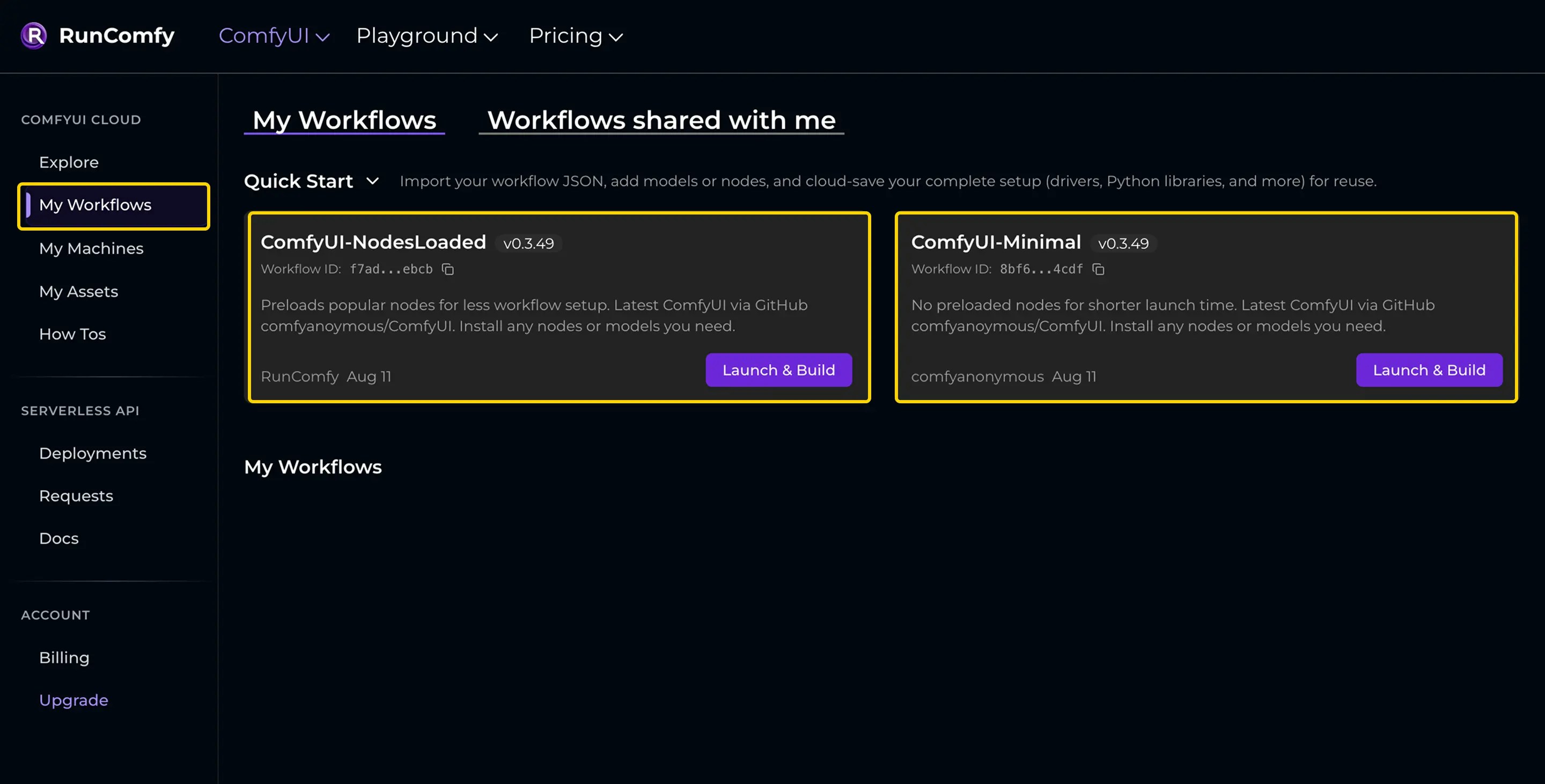
- Go to My Workflows.
- Launch a ComfyUI session.
- ComfyUI-NodesLoaded: common nodes pre-installed (slower startup, less setup)
- ComfyUI-Minimal: minimal environment (faster startup, more manual setup)
- Build your workflow on the canvas, or drag-and-drop an existing workflow JSON to import it.
Option B: Use a community template
- Visit Explore.
- Browse/search for a workflow.
- Click Run Workflow to load it into a machine instance.
- Modify it as needed (nodes, models, parameters), then Cloud Save as your own workflow.

Add custom nodes
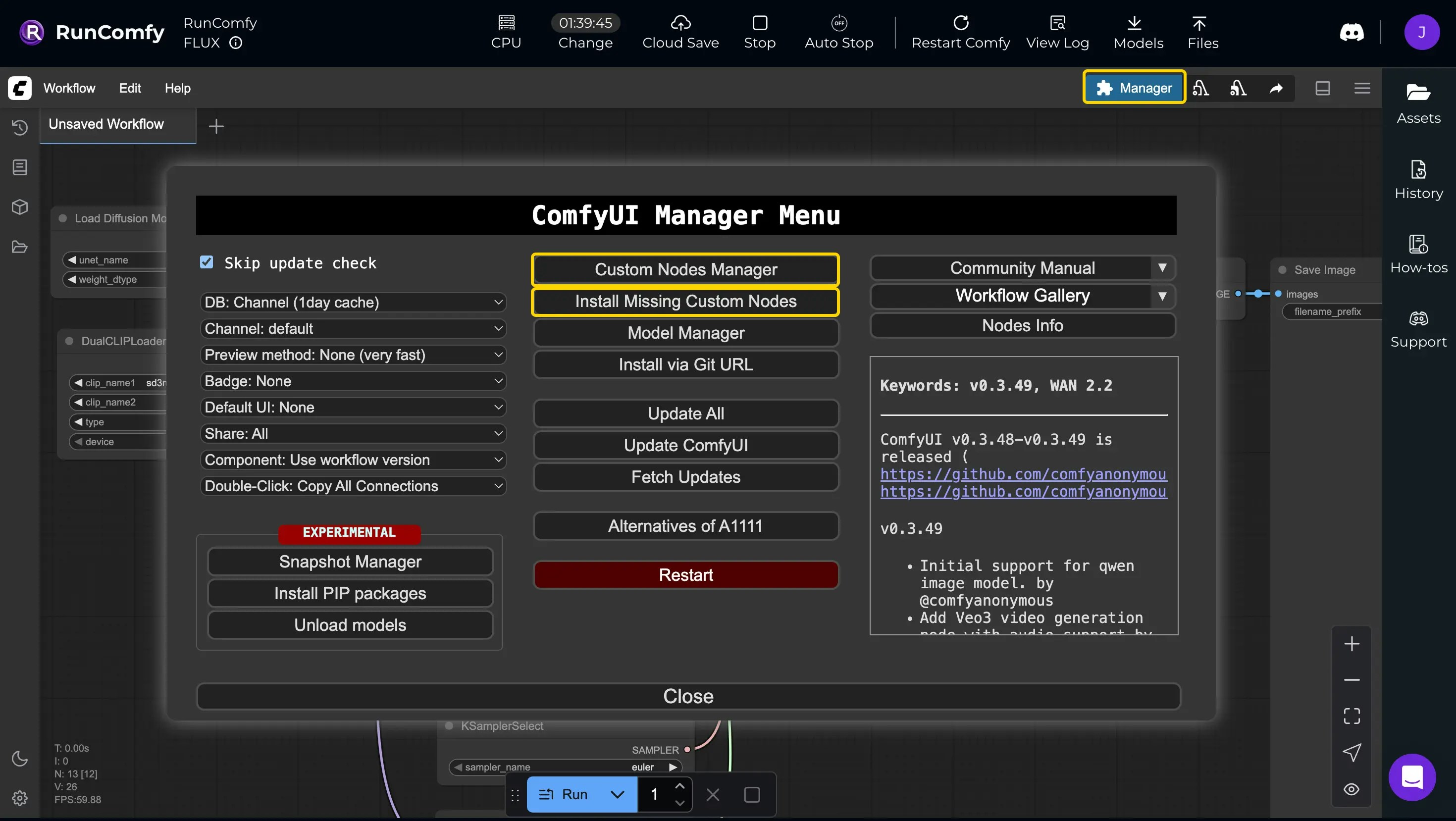
To install custom nodes:- Click the Manager button.
- Use Install Missing Custom Nodes to auto-detect what your workflow needs, or Install Custom Nodes to search and install by name.
- Restart ComfyUI using the Manager’s restart feature, then refresh your browser.
Add models
RunComfy supports downloading models from Civitai, Hugging Face, and Google Drive, and uploading your own files.Download models (URL)
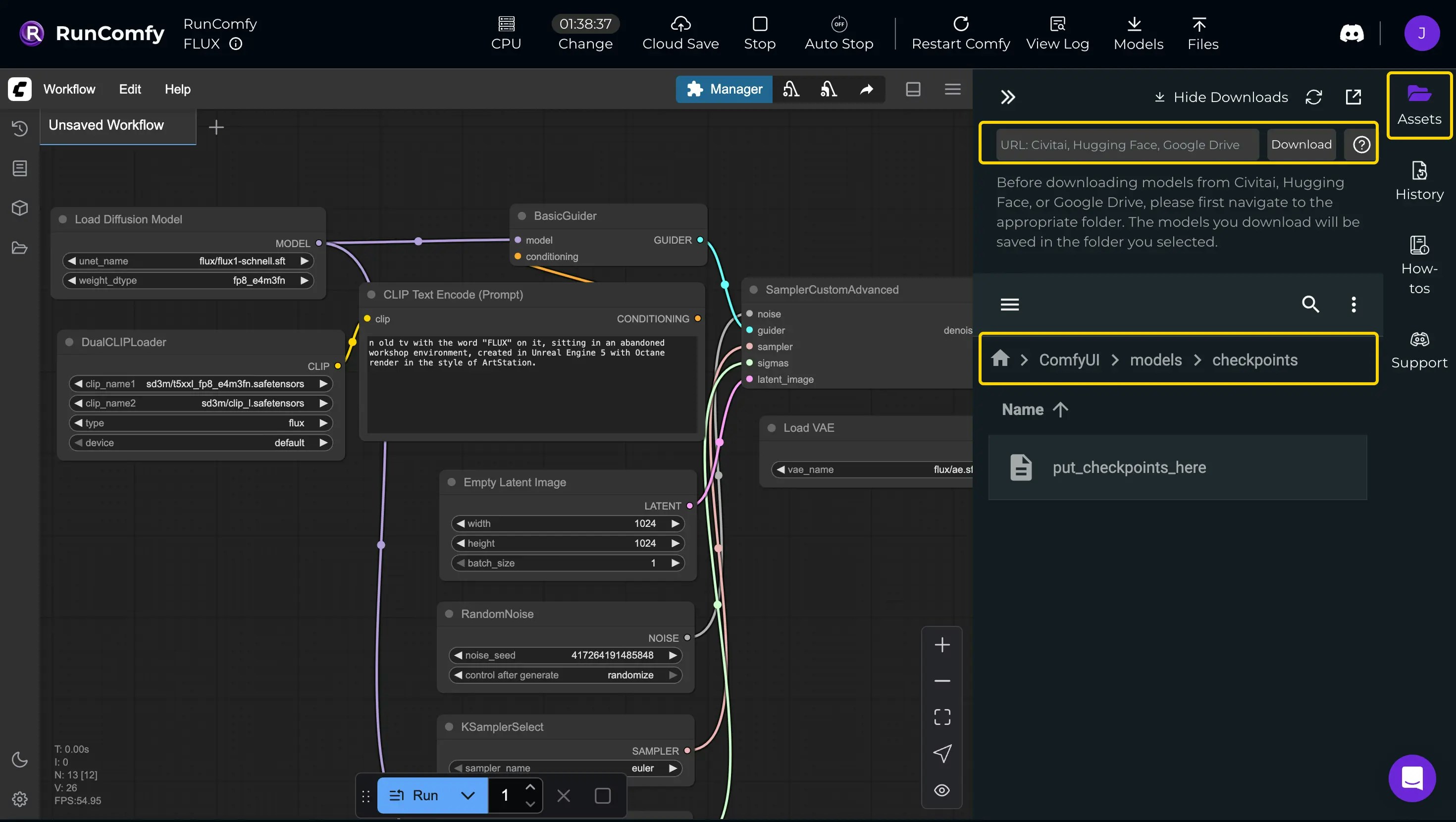
- Click Assets (right sidebar) to open the file browser.
- Navigate to the right folder (for example
models/checkpointsormodels/loras). - Paste the model URL into the download bar and click Download.
- Refresh the interface to load the new model.
Upload models (local files)
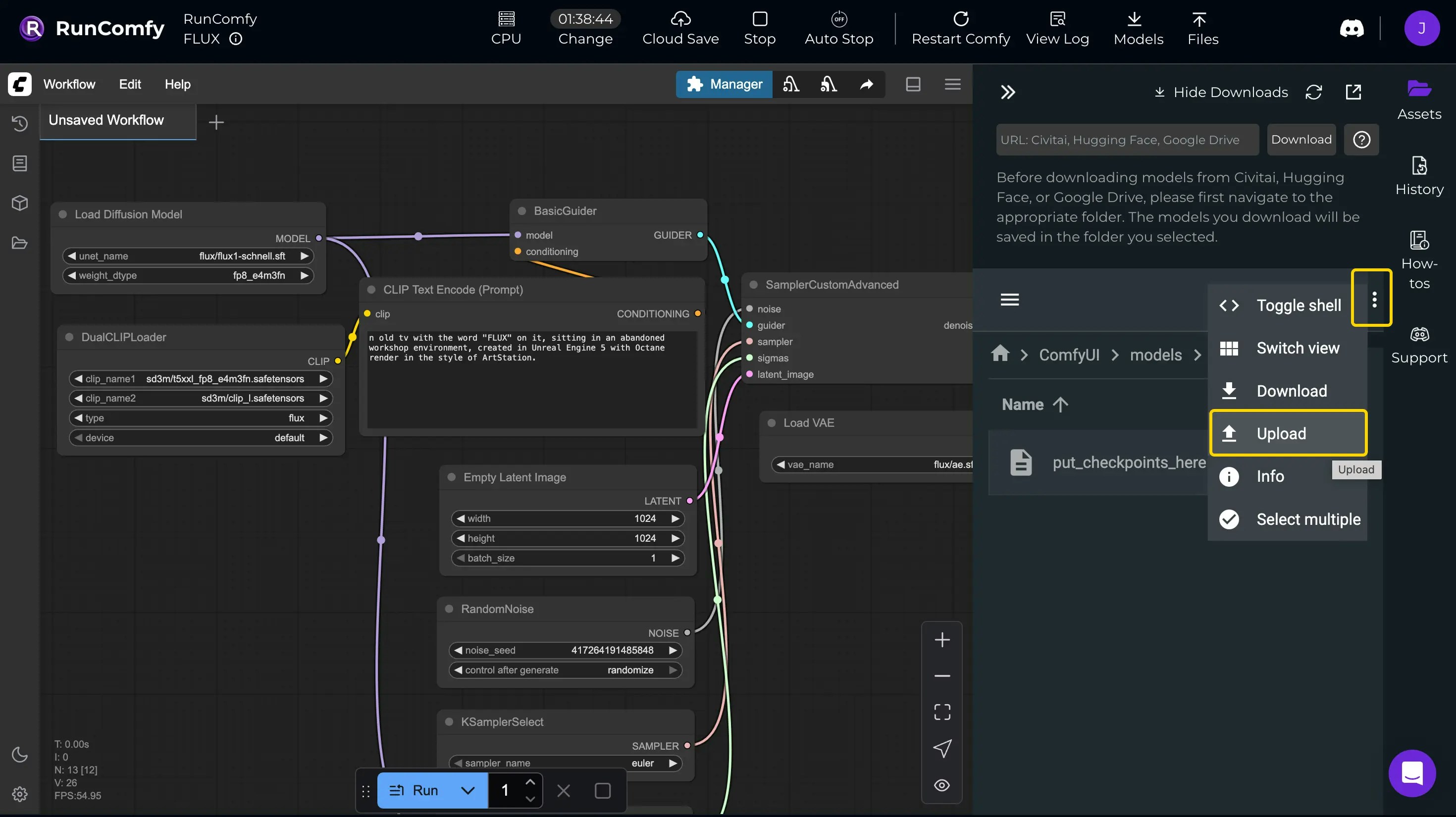
- Navigate to the target folder in the file browser.
- Click the three-dot menu.
- Select Upload and choose your files.
Test the workflow
Click Queue Prompt to run the workflow and preview outputs directly in output nodes. Generated files are saved to the output folder. For debugging:- check the custom node author’s GitHub repos for errors/issues
- refer to common fixes in RunComfy’s How-tos
Cloud Save the workflow
Cloud Saving packages your workflow and its runtime into a reproducible container image. This enables:- consistent execution in the cloud
- workflow versioning
- private sharing within a team
Note: Community workflows in RunComfy (from Explore) are already Cloud Saved, so you can deploy them immediately or modify and save them as your own.
Save to cloud
Click Cloud Save in the top bar.Note: If multiple workflow tabs are open, only the active tab is saved. Save other tabs separately as new workflows if you want to keep each one.
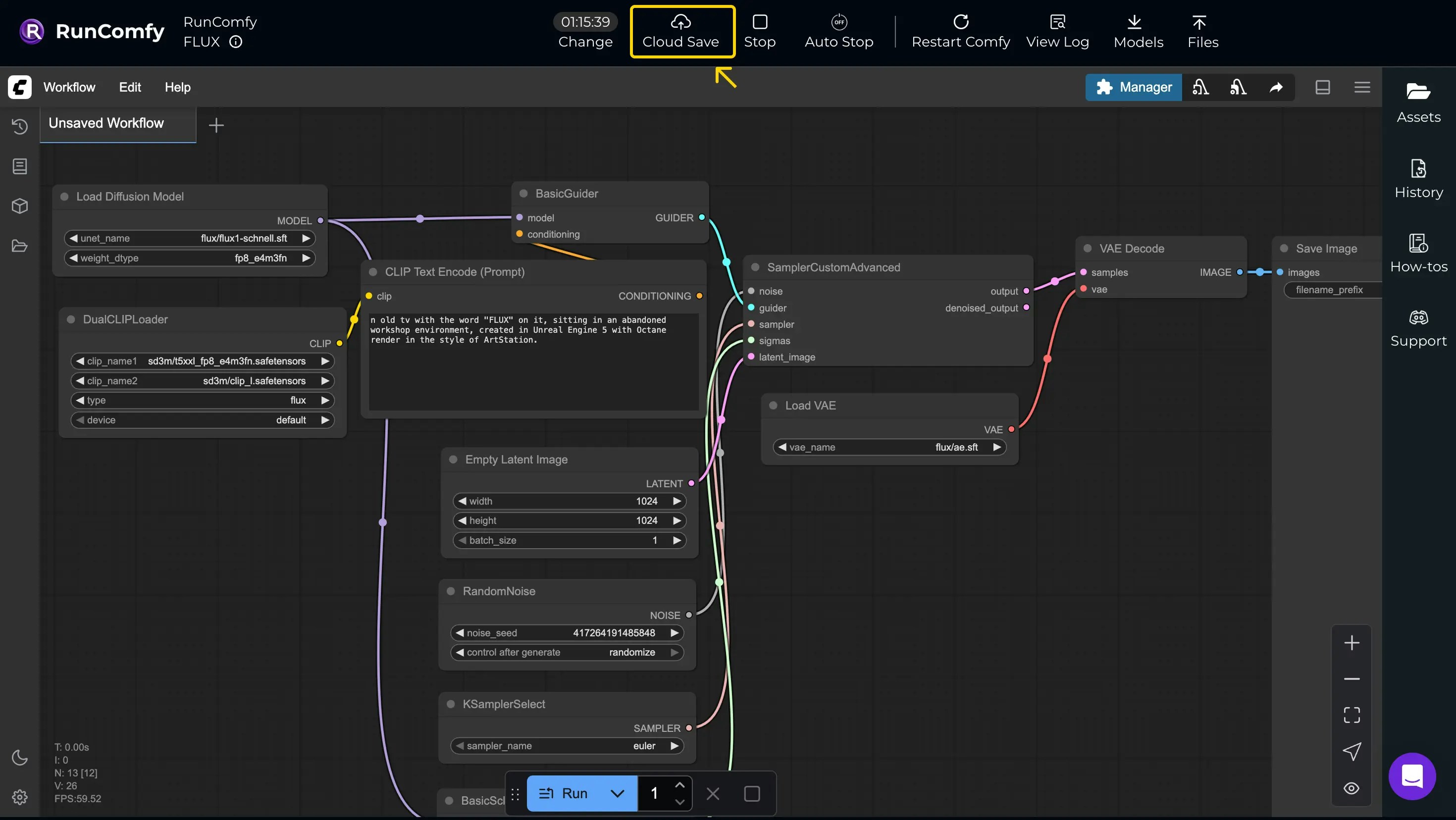
View saved workflows
Saved workflows appear on My Workflows. When you launch again, RunComfy loads the saved version with its environment.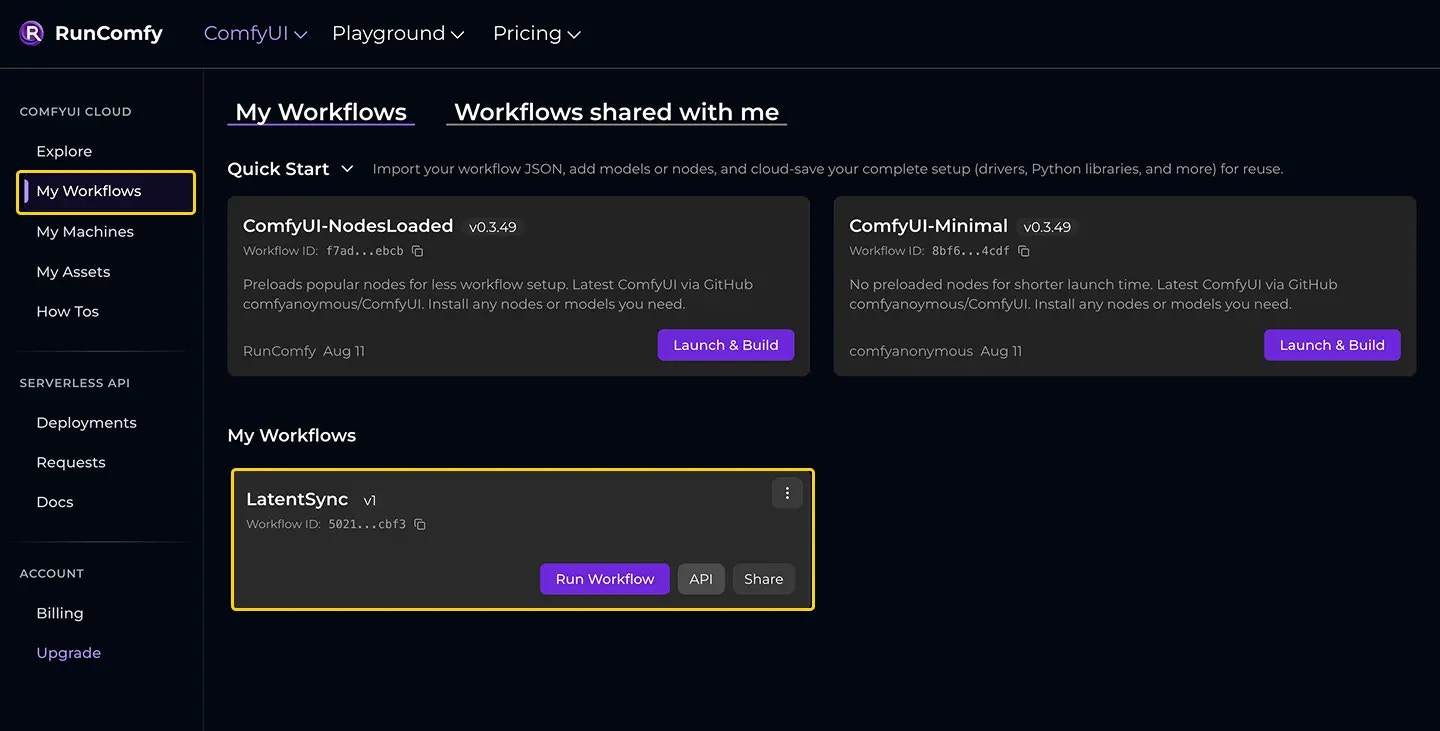
Deploy the saved workflow
Saved workflows are ready to deploy right away:- Click the API button in the workflow UI, or
- Go to Deployments, select your workflow, and create a Deployment.