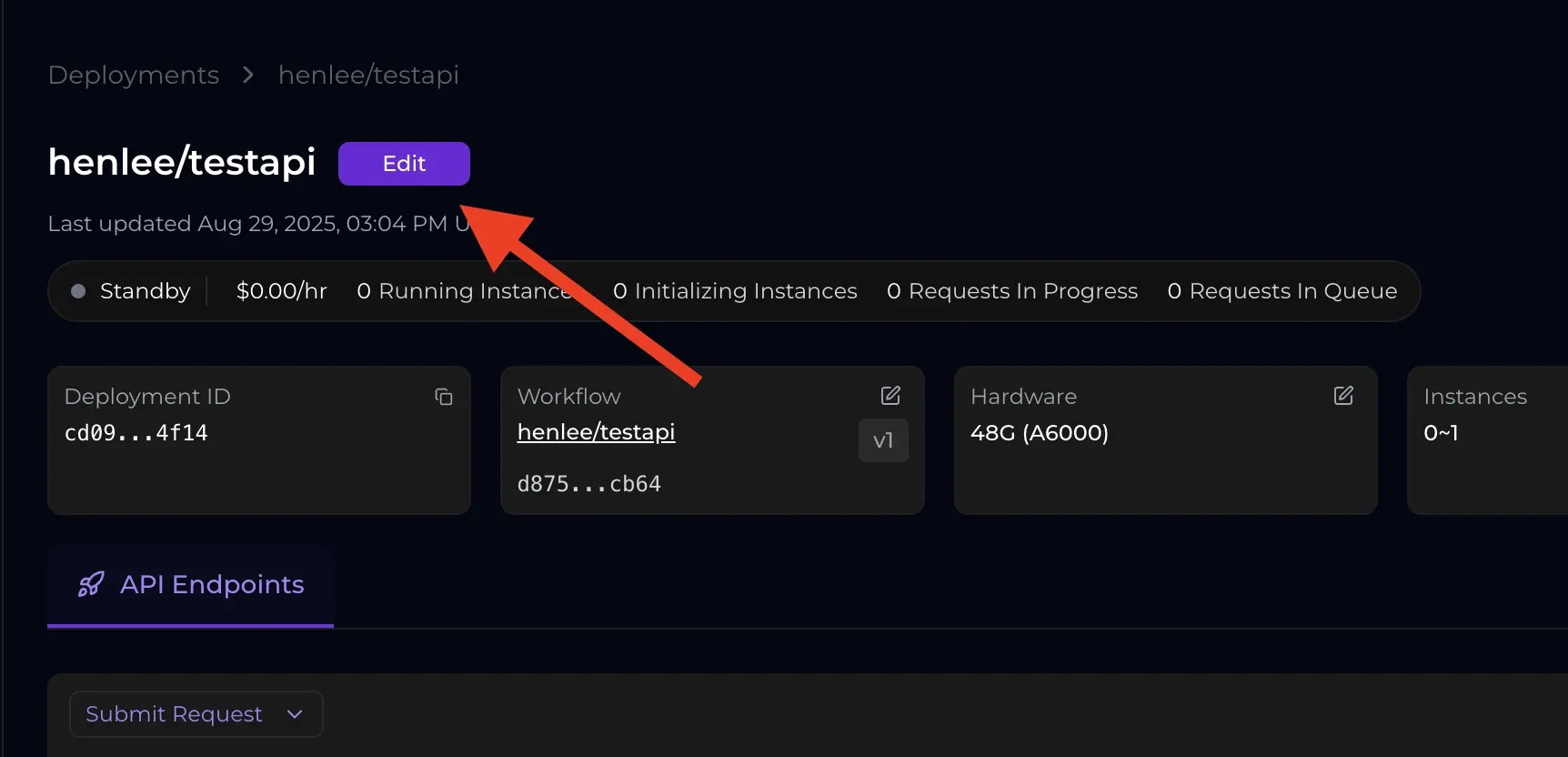
Find the Edit Deployment button
Step 1
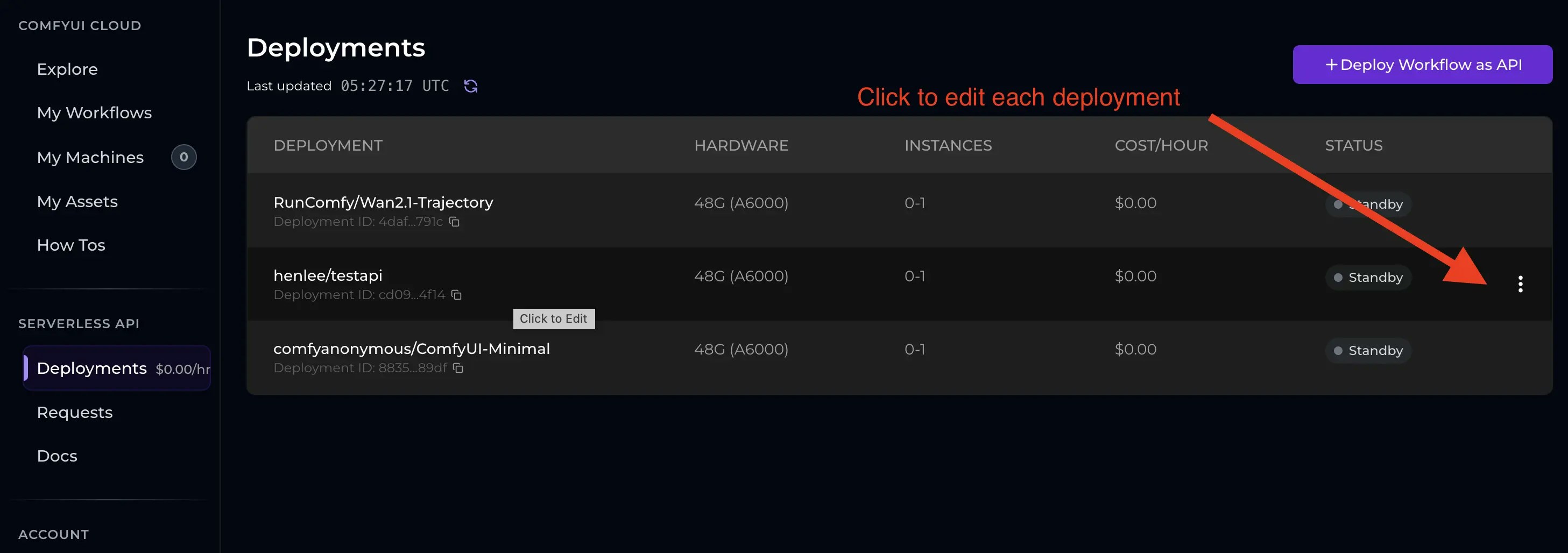
Step 2
Update workflow version
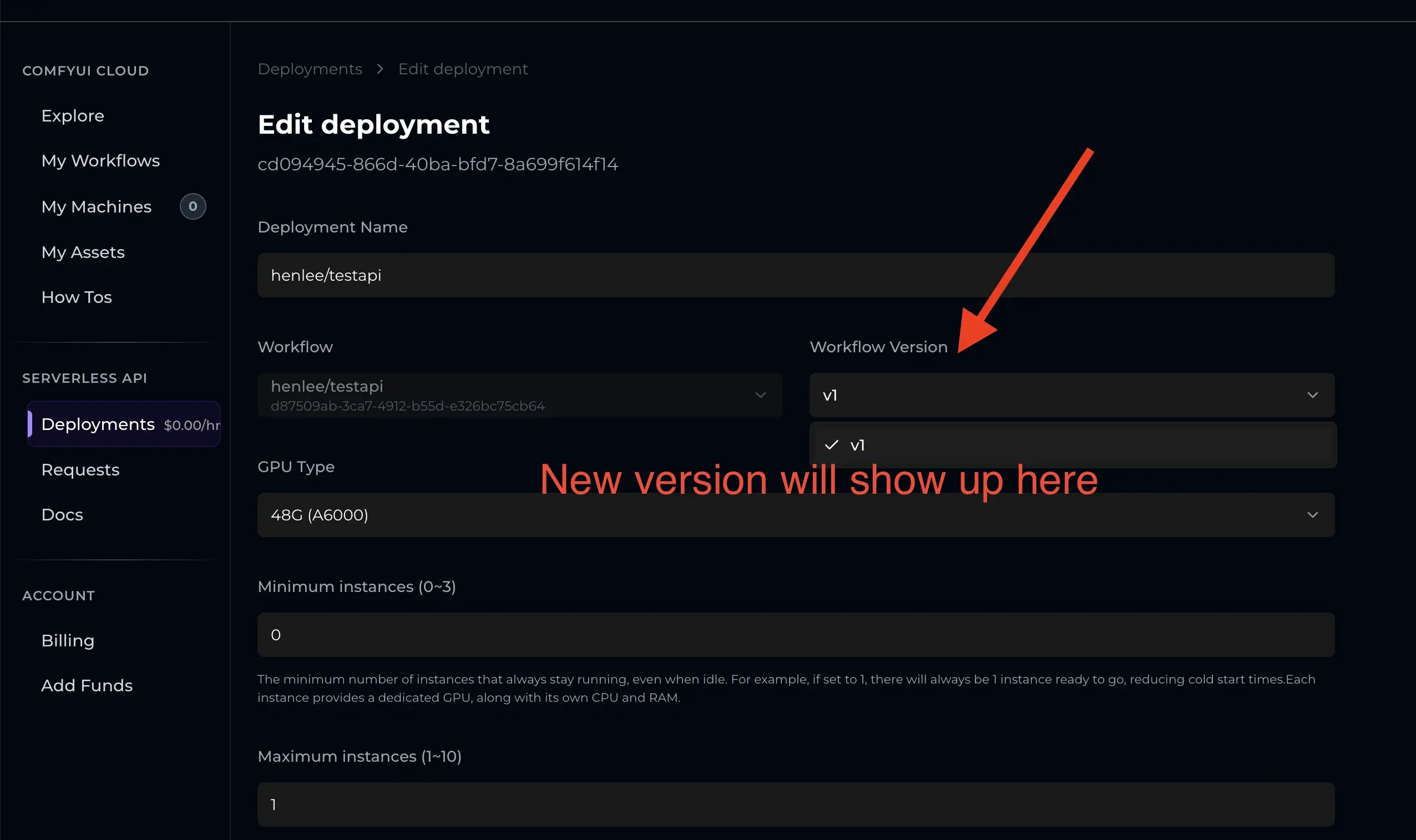
If you Cloud Saved a new workflow version (for example, you fixed bugs, optimized nodes, or added features), your deployment will continue running the version it was created with. To use the new version:- test the new version in a ComfyUI session to confirm it runs end-to-end
- edit the deployment and select the new workflow version
- (important) re-check your API
overrides— node IDs or input names may have changed between versions
Select a version in the dropdown
Change hardware
You can adjust the GPU hardware tier at any time, for example, upgrade to higher VRAM for larger models or higher throughput.Change autoscaling
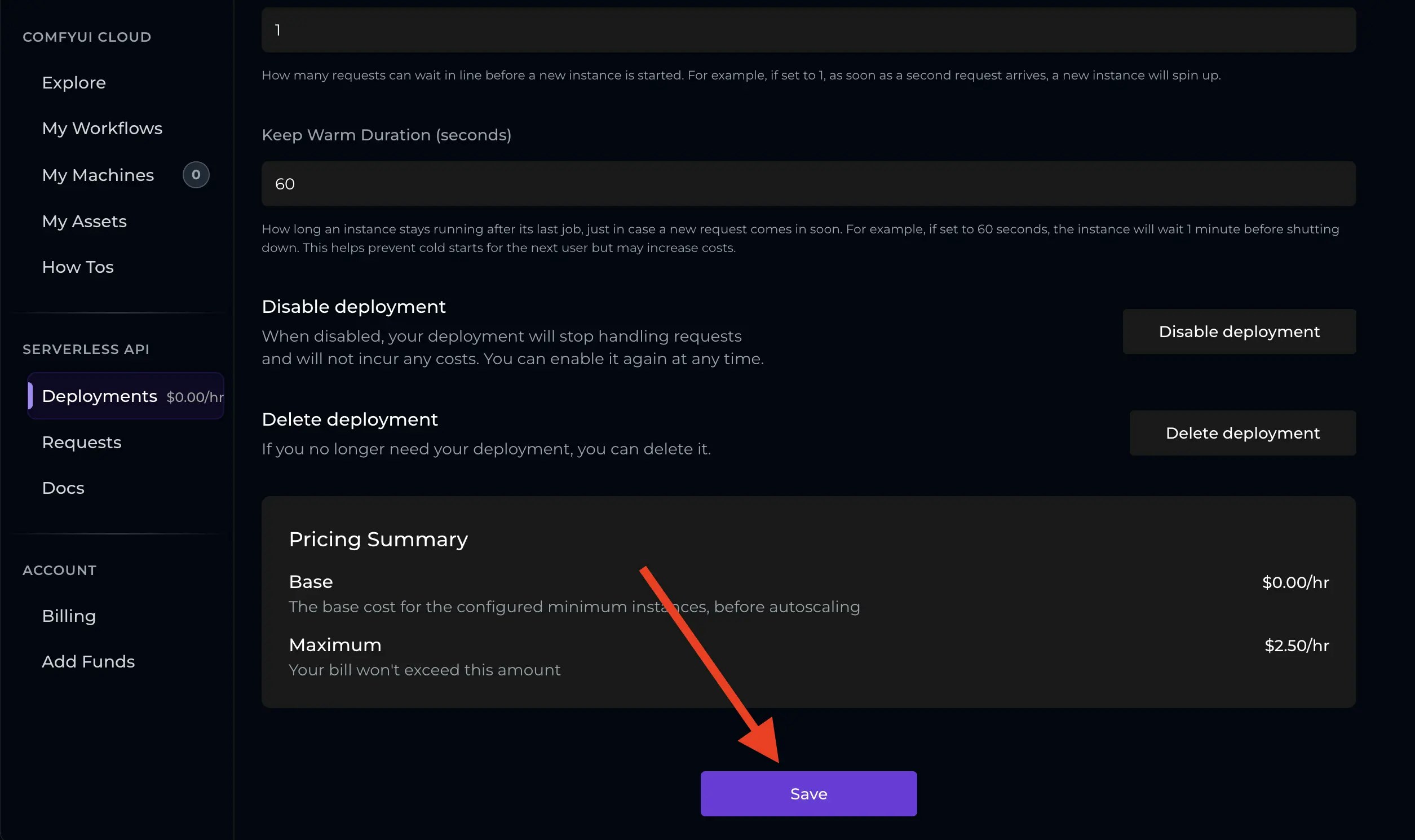
You can update autoscaling rules at any time, including:- min/max instances
- queue size
- keep-warm duration
Rollout behavior (what happens after you save)
Deployment changes roll out via a rolling update:- For workflow version or hardware updates: existing instances finish in-flight requests on the old config while new instances start with the updated config; once ready, new requests are routed to the new instances.
- For autoscaling-only changes: the system adjusts the current instance pool according to the new rules.
Disable / enable a deployment
- Disable: new and in-flight requests are rejected and instances are shut down (stops billing). The configuration is preserved so you can re-enable later.
- Enable: the deployment restarts and begins accepting requests again, scaling according to your autoscaling rules.
Delete a deployment
If a deployment is no longer needed, you can delete it permanently. This removes the deployment configuration and stops any associated costs, but your underlying workflow remains available for future deployments. Before deleting, note down any settings you want to keep for reference—the action is irreversible.Save changes