Deploy a ComfyUI workflow as Serverless API (ComfyUI) and make your first inference call. This quickstart uses a pre-built community workflow (RunComfy/FLUX) so you can learn the end-to-end API flow first. Want to deploy your own workflow instead? See Custom Workflows.

What you’ll need

  • A workflow_api.json exported from ComfyUI (Workflow → Export (API))
  • A deployed endpoint (deployment_id)
  • An API token (Bearer token auth)

Step 1: Prepare the workflow API file and overrides

  1. Visit the RunComfy/FLUX workflow page and click Run Workflow to launch a ComfyUI session (initial startup may take a few minutes).
  2. Once the UI loads, run the workflow once to confirm it works.
  3. From the Workflow menu in the top-left, select Export (API) to download workflow_api.json.
The exported file will be similar to flux_workflow_api.json.
Learn more: Workflow Files
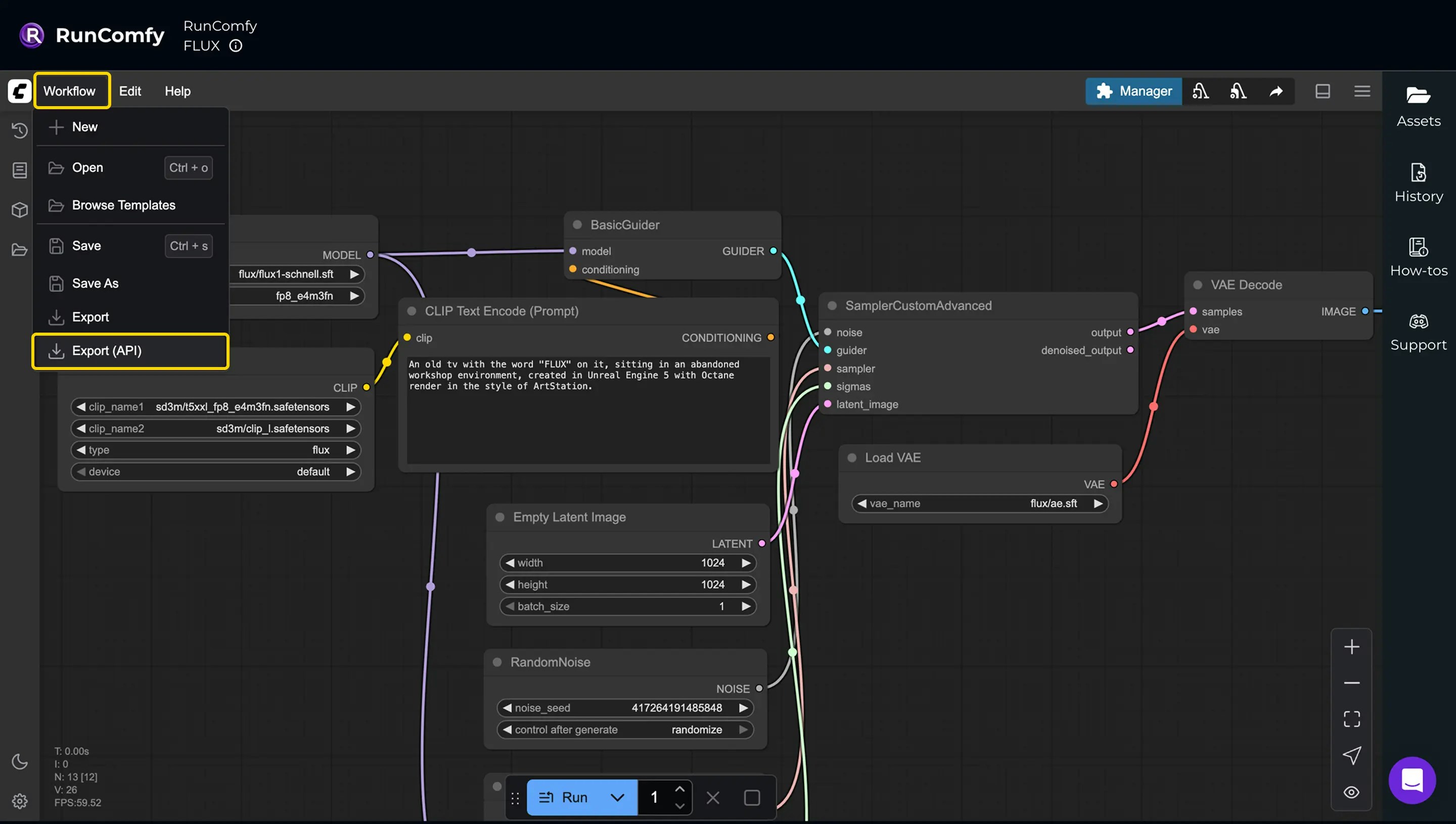
Alt Export API in ComfyUI

Identify which inputs you want to override

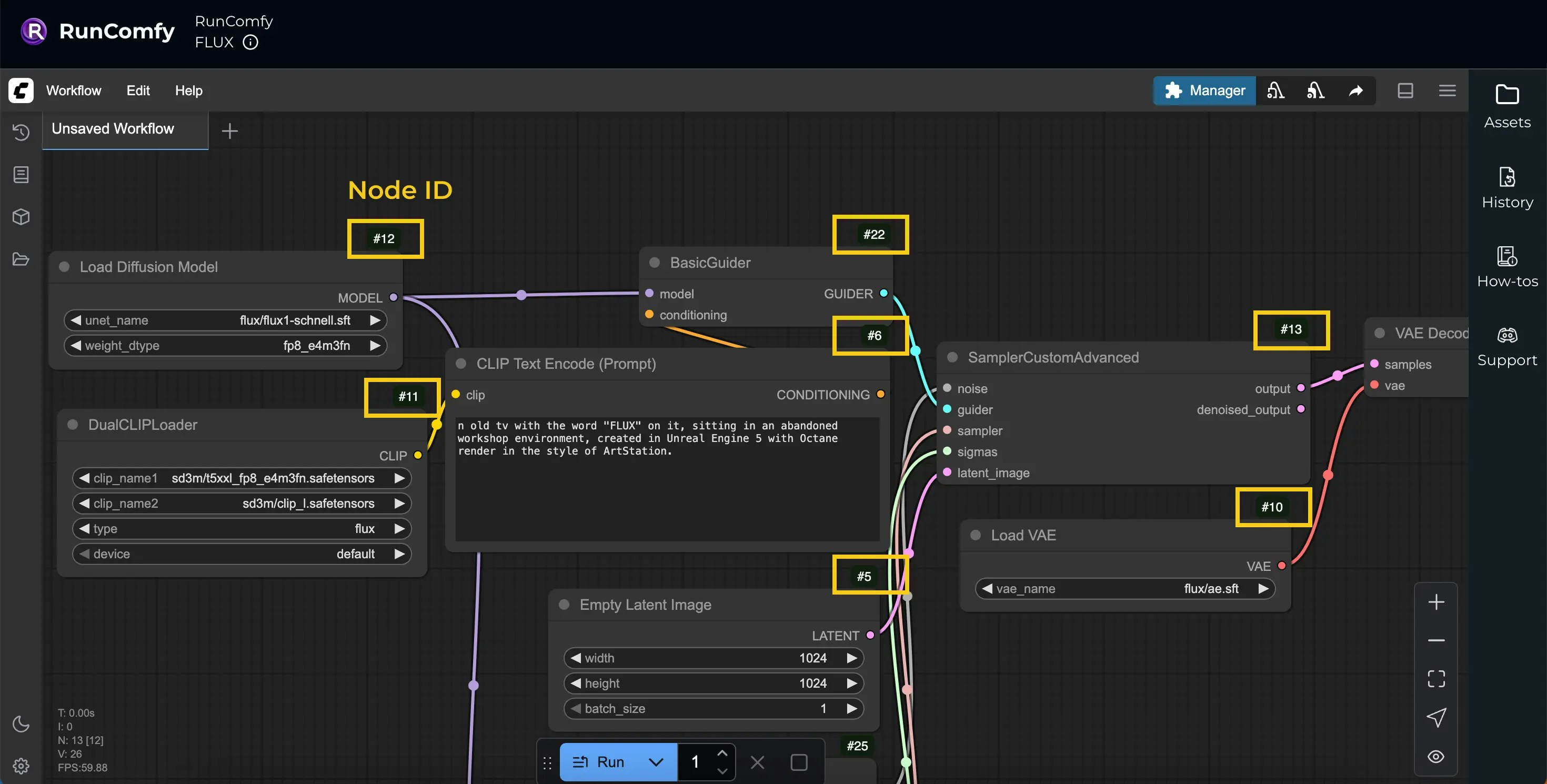
workflow_api.json uses Node IDs as keys. To make it easier to map node IDs → nodes in the UI:
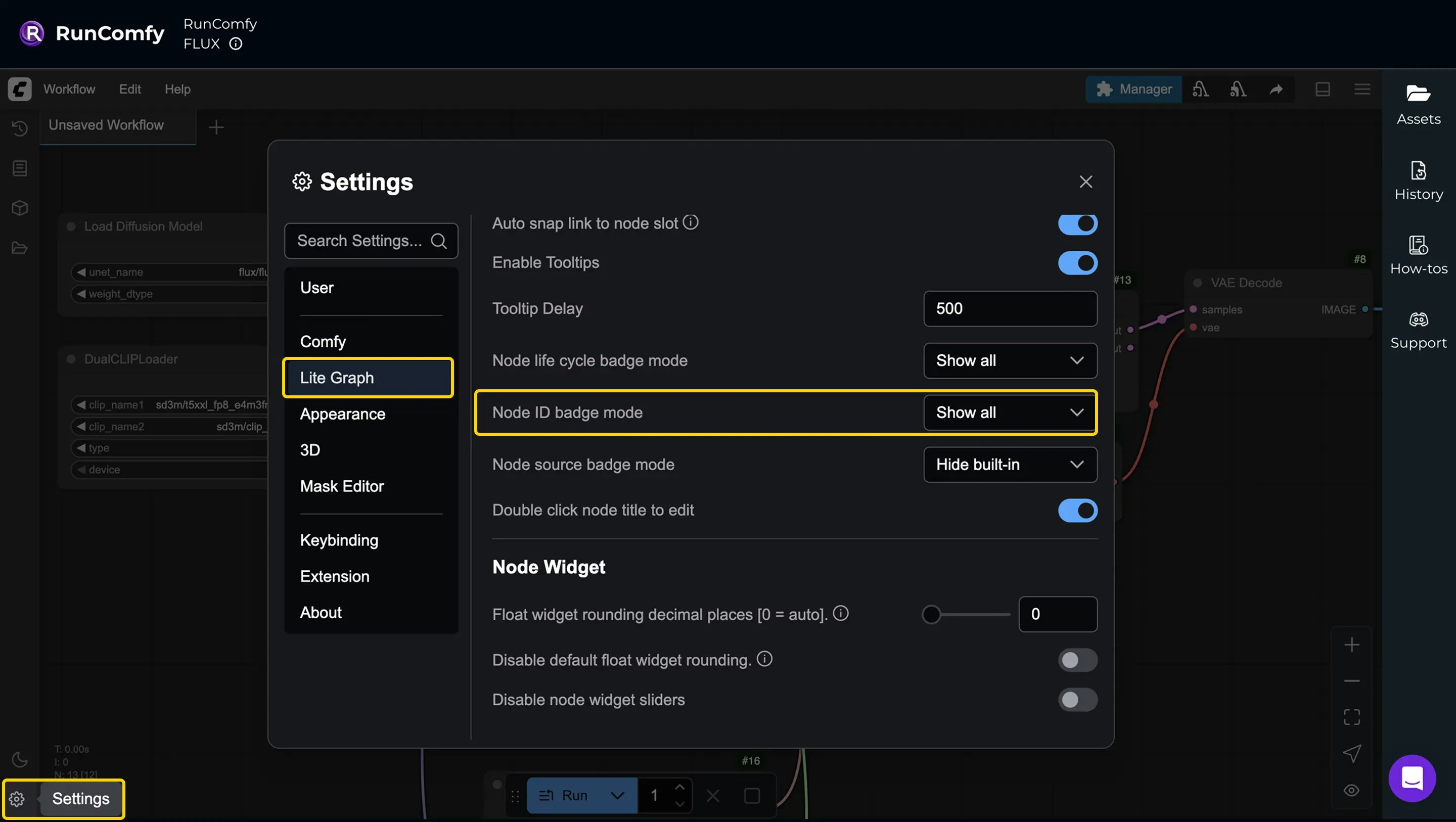
  • Open Settings (bottom-left)
  • Go to Lite Graph
  • Set Node ID Badge Mode to Show All
Alt Enable Node ID display in ComfyUI Alt Node ID in ComfyUI

Build an overrides object

For inference requests, RunComfy uses the deployment’s saved workflow_api.json as the base. You usually send only an overrides object to customize specific inputs (prompt, seed, media URLs, etc.). Here’s an example override payload for this workflow: Alt Example API Overrides JSON
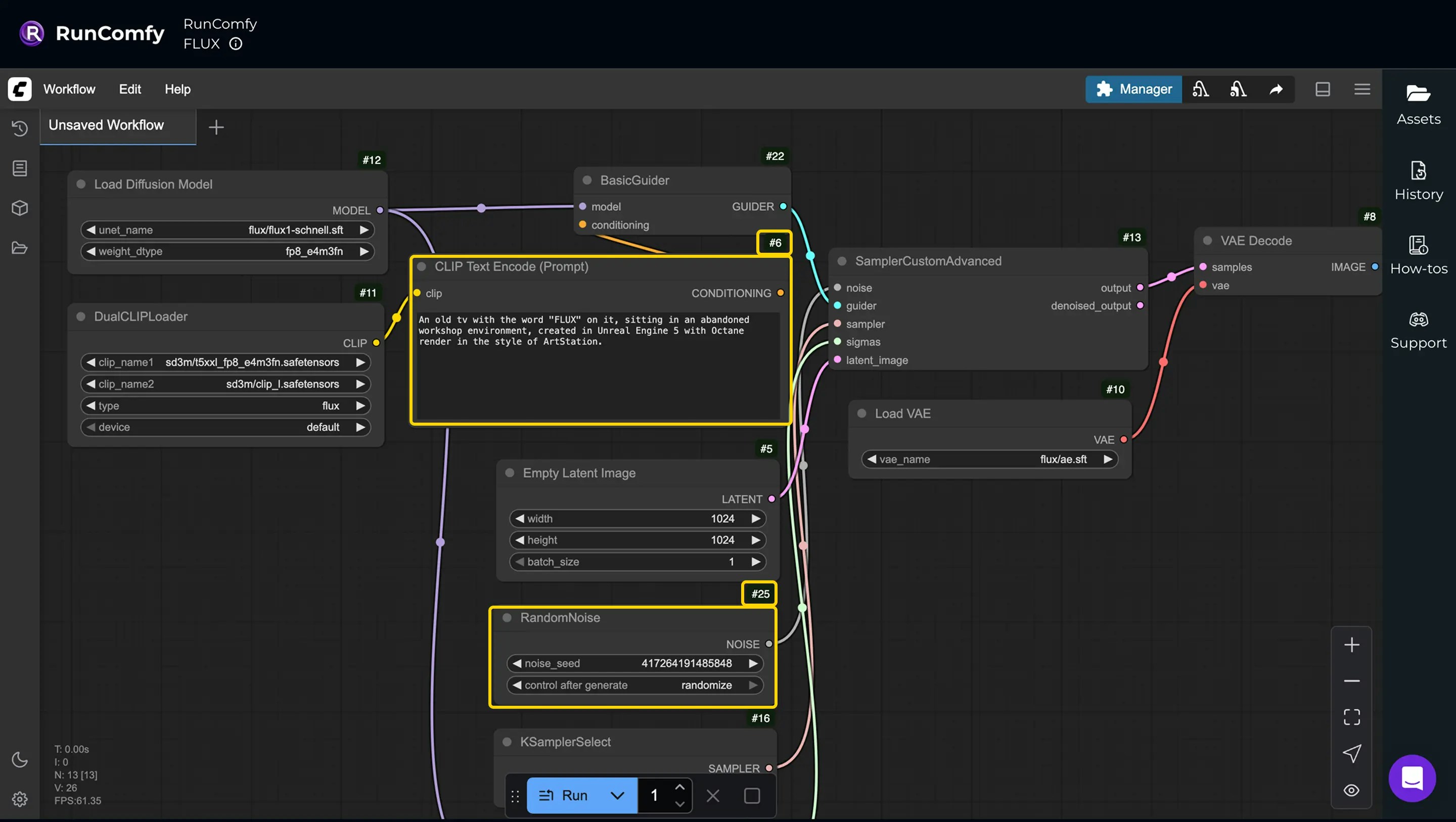
{
  "overrides": {
    "6": {
      "inputs": {
        "text": "Your custom prompt here"
      }
    },
    "25": {
      "inputs": {
        "noise_seed": 123456789
      }
    }
  }
}
For the full request lifecycle and override rules, see Async Queue Endpoints.

Step 2: Deploy the workflow as an API

Go to the Deployments page and select Deploy workflow as API. Search for the workflow by its name (RunComfy/FLUX) or ID (00000000-0000-0000-0000-000000001111). For a quick setup, choose Instant Deploy, which uses default settings like 48GB hardware (A6000) and autoscaling. These settings can be adjusted later. After the deployment is complete, copy the deployment_id — you’ll need it for API calls.

Step 3: Authenticate

All API calls require a Bearer token. Add this header to every request (replace <token> with your API key): Authorization: Bearer <token> Get your API token from the Profile page (click your avatar in the upper-right).

Step 4: Submit a request

Send a POST request to the inference endpoint, replacing {deployment_id} with your actual deployment ID. In the request body, include the overrides you prepared in Step 1 under the overrides field.
curl --request POST \
  --url https://api.runcomfy.net/prod/v1/deployments/{deployment_id}/inference \
  --header "Content-Type: application/json" \
  --header "Authorization: Bearer <token>" \
  --data '{
    "overrides": {
      "6": {
        "inputs": {
          "text": "Your custom prompt here"
        }
      },
      "25": {
        "inputs": {
          "noise_seed": 123456789
        }
      }
    }
  }'
Expected response:
{
  "request_id": "{request_id}",
  "status_url": "https://api.runcomfy.net/prod/v1/deployments/{deployment_id}/requests/{request_id}/status",
  "result_url": "https://api.runcomfy.net/prod/v1/deployments/{deployment_id}/requests/{request_id}/result",
  "cancel_url": "https://api.runcomfy.net/prod/v1/deployments/{deployment_id}/requests/{request_id}/cancel"
}

Image/video inputs

If your workflow needs an image or video input, you can pass media in overrides using either:
  • a public HTTPS URL, or
  • a Base64 data URI
(Replace the node ID and input name with what your workflow expects.)

Using a public URL

curl --request POST \
  --url https://api.runcomfy.net/prod/v1/deployments/{deployment_id}/inference \
  --header "Content-Type: application/json" \
  --header "Authorization: Bearer <token>" \
  --data '{
    "overrides": {
      "189": {
        "inputs": {
          "image": "https://example.com/new-image.jpg"
        }
      }
    }
  }'

Using a Base64 data URI

curl --request POST \
  --url https://api.runcomfy.net/prod/v1/deployments/{deployment_id}/inference \
  --header "Content-Type: application/json" \
  --header "Authorization: Bearer <token>" \
  --data '{
    "overrides": {
      "189": {
        "inputs": {
          "image": "data:image/jpeg;base64,/9j/4AAQSkZJRgABAQEASABIAAD..."
        }
      }
    }
  }'
For the full set of upload rules and limits, see Async Queue Endpoints (Request Example – Image/Video).

Core API nodes

If your workflow uses ComfyUI Core API nodes that require an API key, send the Comfy Org API Key in the request body as shown here: Async Queue Endpoints – Request Example (API Nodes).

Step 5: Monitor and retrieve results

After submitting a request, you can track its progress and fetch outputs once it’s ready.

Check request status

Poll status_url until the status becomes "completed":
curl --request GET \
  --url https://api.runcomfy.net/prod/v1/deployments/{deployment_id}/requests/{request_id}/status \
  --header "Authorization: Bearer <token>"
Example response:
{
  "status": "in_queue",
  "queue_position": 0,
  "result_url": "https://api.runcomfy.net/prod/v1/deployments/{deployment_id}/requests/{request_id}/result"
}

Retrieve request results

All results from the Serverless API are automatically deleted after 7 days. If you need long-term storage, save the results elsewhere.
curl --request GET \
  --url https://api.runcomfy.net/prod/v1/deployments/{deployment_id}/requests/{request_id}/result \
  --header "Authorization: Bearer <token>"
Example response:
{
  "status": "succeeded",
  "outputs": {
    "136": {
      "images": [
        {
          "url": "https://example.com/ComfyUI_00001_.png",
          "filename": "ComfyUI_00001_.png",
          "subfolder": "",
          "type": "output"
        }
      ]
    }
  },
  "created_at": "2025-07-22T13:05:16.143086",
  "finished_at": "2025-07-22T13:13:03.624471"
}

Webhooks (optional)

Instead of polling, you can also use Webhooks to receive progress and final result updates.